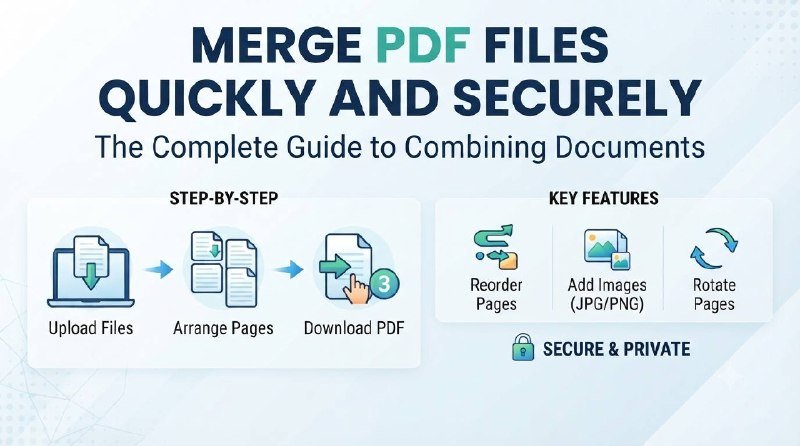
Merge PDF files quickly and securely
Merge PDF files quickly and securely using free online tools when you need to combine reports, receipts, or images into one document.
Combining separate PDFs can simplify sharing, printing, or archiving. The fastest way is an online merge PDF tool that runs in your browser — no software install required. Below you’ll find a clear step-by-step guide, privacy tips, and troubleshooting advice so you can merge PDFs confidently.
How to merge PDF files online — step-by-step
Most online tools follow the same basic flow. Here’s a simple checklist you can follow:
- Open the merge PDF tool in your browser (look for a reputable site).
- Upload the PDF files you want to combine from your computer or cloud storage.
- Arrange pages or reorder whole documents as needed.
- Choose any options like compression or page range selection.
- Click Merge or Combine and download the new PDF.
For a dedicated merging utility you can try ToolStack’s merge tool at Merge PDF. If you need to split a large file first, use the Split PDF tool.
Preparing files before you merge PDF documents
Small prep saves time and avoids surprises after merging:
- Check file names so you can identify documents easily while arranging them.
- Convert non-PDF images to PDF first (use a JPG-to-PDF tool if needed).
- Decide if you need to compress the final file to reduce size.
If you need to convert images, try the JPG to PDF converter; for images that are too large, the Image Compressor can help.
Options you might see when you merge PDF
Different services offer extra features. Common options include:
- Page selection — merge only specific pages from a document.
- Reordering — drag-and-drop pages before combining.
- Compression — shrink images and remove extra data to reduce file size.
- Output quality — balance between file size and image/text clarity.
Privacy and security when you merge PDF online
Privacy matters, especially for invoices, IDs, or contracts. To protect sensitive data when you merge PDF files online:
- Choose tools with clear privacy policies and automatic deletion of uploaded files.
- Avoid uploading highly sensitive documents to public or unknown sites.
- Consider offline desktop tools for confidential files or use an encrypted cloud service.
For quick edits that stay local, some browsers and operating systems let you print to PDF and merge offline, but online tools are ideal for most everyday tasks.
Troubleshooting common issues
Upload errors or slow uploads
Check file size limits — many free services cap uploads. If your files are large, compress images first or split big PDFs using the Split PDF tool.
Pages out of order after merging
Most tools let you drag pages into the correct order before finalizing. Name files with a numeric prefix (01-, 02-) to help keep order consistent.
Resulting PDF is too large
Use compression options during export or run the final file through an image or PDF compressor to reduce size while retaining readable quality.
When to use online merging vs. desktop software
Online tools are best for quick tasks, occasional use, and when you need convenience on any device. Desktop software can be better for batch jobs, strict privacy, or advanced editing.
If you plan to edit PDF content later, consider converting to an editable format first — for example, use a PDF to Word converter, make edits, then export back to PDF.
Best practices to keep your merged PDFs organized
Good habits reduce rework:
- Use clear, date-based file names.
- Keep a master folder for combined documents.
- Maintain a small table of contents page at the start of very long merged PDFs.
Quick summary
To merge PDF files for free online: pick a trusted tool, upload and arrange your files, choose any compression or page options, then merge and download. For images, convert JPG to PDF first; for splitting large files, use a split tool. Follow privacy best practices if the documents are sensitive.
Frequently Asked Questions
Is it safe to merge PDF files online?
Many reputable services delete files after processing and use secure connections, but avoid uploading highly sensitive documents and check the tool’s privacy policy.
Can I merge JPG or PNG images into a PDF?
Yes — convert images to PDF first (or use a tool that accepts images) and then merge; ToolStack offers a JPG to PDF converter to simplify this.
What if my merged PDF is too large to email?
Compress the final PDF using a compressor tool or reduce image quality before merging, and consider sharing via cloud storage if size remains an issue.
Are there file size limits for free online merge tools?
Most free tools impose file size or page limits; if you hit a limit, split the file into parts or use a desktop app that supports larger batches.
How do I keep pages in the correct order when merging?
Rename files with numeric prefixes and use drag-and-drop ordering inside the merge tool before finalizing the combined PDF.