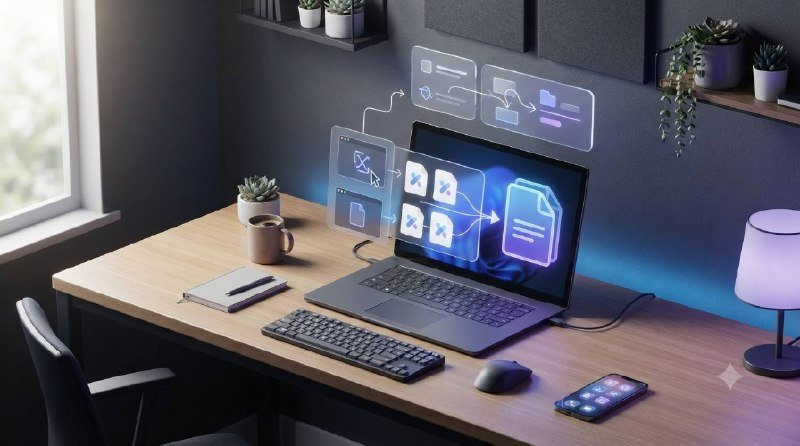
Merge PDF on Windows is a common task for students, office teams, freelancers, and anyone who needs to keep related documents together. Whether you want to combine invoices, scan pages into one file, or send a cleaner attachment, Windows 10 and 11 give you several easy ways to do it without making the process complicated.
In this guide, you will learn when it makes sense to merge files, which options work best, and how to avoid common issues such as wrong page order, oversized files, or poor scan quality. The goal is simple: help you create one organized PDF quickly and confidently.
Why merge PDF on Windows?
Combining files into one PDF makes sharing and storing documents much easier. Instead of sending several attachments, you can send one neat file that opens in the right order. This is especially useful for job applications, contracts, reports, class notes, and scanned paperwork.
Many people also merge PDFs to keep records organized. For example, monthly statements, receipts, or project drafts are easier to archive when they live in one document instead of a folder full of separate files.
Best ways to merge PDF on Windows 10 and 11
Use a browser-based PDF merger
For most users, the easiest option is an online tool. A browser-based merger works on both Windows 10 and Windows 11, requires no installation, and is ideal when you need quick results. ToolStack offers a simple Merge PDF tool that lets you upload files, arrange pages, and download one combined document.
This method is especially helpful if you work across different devices or do not want extra software on your PC. If one of your source files is not yet in PDF format, you can first convert it using tools such as JPG to PDF or Word to PDF Converter.
Use Microsoft Print to PDF for simple combinations
Windows includes Microsoft Print to PDF, which can help in some situations. This option is useful when your files are images, web pages, or printable documents that you can place into one sequence and print as a single PDF. It is not a true PDF editor, but it can still work for basic needs.
The main limitation is that this method may require more manual setup. You may need to open each file, arrange content carefully, and print in the right order. For frequent merging, a dedicated merger is usually faster.
Use desktop PDF software
If you regularly handle sensitive files or large document sets, desktop PDF software may suit you better. Installed apps can offer drag-and-drop merging, page previews, reordering, and extra editing controls. Some are free, while others are paid.
This approach is useful for legal, financial, or business workflows where you want local processing and stronger control over the final file. However, for occasional use, a lightweight online tool is often more convenient.
How to merge PDF on Windows step by step
If you want the fastest route, follow these basic steps:
- Gather all files you want to combine and rename them clearly.
- Open a trusted merger such as ToolStack’s Merge PDF tool.
- Upload your PDF files in the order you want them to appear.
- Drag files or pages to rearrange them if needed.
- Start the merge process and wait for the final document to generate.
- Download the merged PDF and review every page before sharing.
Before you finish, check headings, page orientation, signatures, and scan readability. A quick review helps you catch missing pages or duplicates before the file goes out to clients, teachers, or colleagues.
Tips to get a cleaner merged PDF
Arrange files before uploading
The easiest way to avoid mistakes is to prepare your files in advance. Give each document a clear filename, such as 01-cover-page, 02-report, and 03-appendix. This makes the correct order obvious before merging begins.
Reduce image-heavy file sizes
Scanned PDFs can become very large, especially when they include high-resolution images. If your final PDF is too big to email or upload, compress source images first with an image compressor. Smaller inputs often lead to a more manageable final PDF.
Check mixed page sizes and orientation
When combining files from different sources, some pages may be portrait while others are landscape. You might also see a mix of A4 and letter sizes. Reviewing the final output is important because these differences can affect printing and readability.
Common problems when merging PDFs on Windows
Pages appear in the wrong order
This usually happens when filenames are unclear or files are uploaded too quickly. Numbering documents before you start is a simple fix.
The final PDF is too large
Large scans and images are usually the cause. Compress images, remove unnecessary pages, or split very large jobs into smaller documents. If you need separate sections afterward, a Split PDF tool can help.
Some files will not combine properly
Corrupted PDFs, password-protected files, or unusual formatting can cause errors. Try reopening and resaving the source file first. If needed, convert the original document again before merging.
When to use online tools vs desktop software
Online tools are best for speed, convenience, and occasional use. They are ideal when you need to merge a few files from home, school, or work without installing anything.
Desktop software is better if you process large batches often, need advanced editing, or must keep everything offline. For many everyday users, the choice comes down to frequency: occasional tasks usually favor online tools, while heavy workflows may justify dedicated software.
Final thoughts on merging PDF files in Windows
If you need to merge PDF on Windows, the good news is that the process is straightforward on both Windows 10 and 11. The best method depends on your needs, but for most people a simple browser-based tool is the quickest and easiest choice.
Start by organizing your source files, combine them in the correct order, and review the final result before sending it. With the right workflow, you can turn scattered documents into one polished PDF in just a few minutes.
Frequently Asked Questions
How can I merge PDF files on Windows 10 without installing software?
You can use a browser-based PDF merger to upload, arrange, and combine files directly online. It is usually the quickest option for occasional use on Windows 10.
Does Windows 11 have a built-in tool to merge PDF files?
Windows 11 does not include a full built-in PDF merger. Microsoft Print to PDF can help in limited cases, but a dedicated merger is easier for most users.
Is it free to merge PDF on Windows?
Yes, many online PDF merging tools are free for basic use. Free options are usually enough for combining a few standard documents.
Why is my merged PDF so large?
Large file size often comes from scanned pages or high-resolution images. Compressing images or reducing unnecessary pages can help shrink the final PDF.
Can I change the page order before merging PDFs?
Yes, most PDF merger tools let you drag files or pages into the order you want before creating the final document.
What should I do if one PDF will not merge?
The file may be corrupted, protected, or exported incorrectly. Try reopening it, saving it again, or converting the original source to PDF one more time.